How quickly can I get started?
For the AI Governance Toolkit: About 15 to 30 minutes to a first useful entry, and 2 to 3 hours for a full setup. Each kit page gives that kit’s own planning estimate. These are estimates, not guarantees.
AI governance, put to work.
Get your kit open, keep your work safe, or find a quick fix.
Get a new download linkTry fewer or different words, or . Still stuck? Email service@extrasphere.com with the kit name and what went wrong.
Unzip the whole download. Open START-HERE.html from the extracted folder in a current desktop version of Chrome, Edge, Safari or Firefox.
Choose Guided setup, enter your company, and start with one task. The fictional example shows what a filled-in kit looks like.
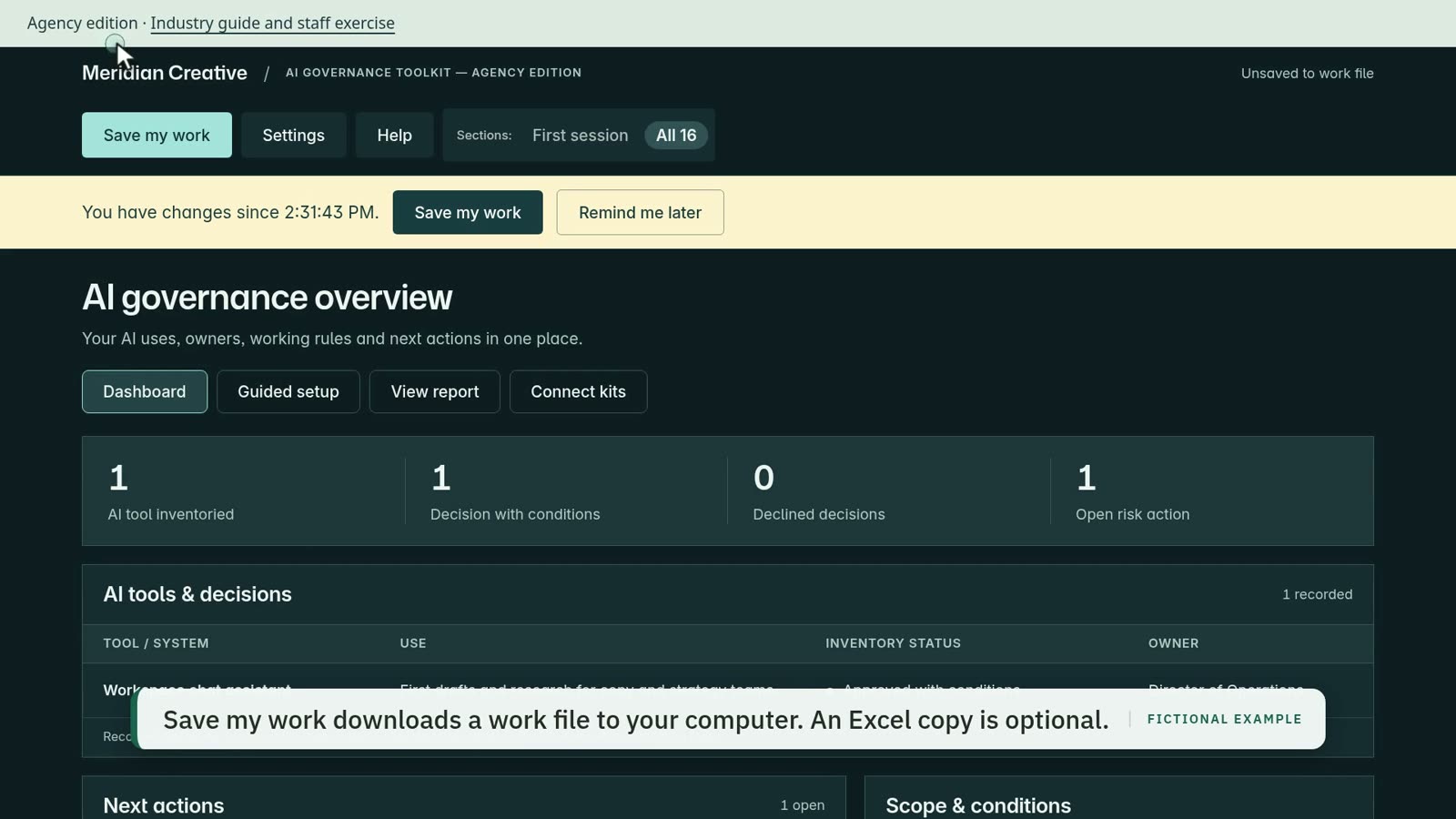
Choose Save my work. Keep the downloaded work file somewhere your company keeps documents.
Coming back later? Open your dashboard and use Settings → Load a work file. Save the current draft first if you need to keep it.
Link is Stripe’s optional saved-payment service and may ask you to verify your identity. If you prefer, choose the card payment option shown in checkout. Extrasphere does not require a Link account or a bank connection to use the kits.
Check spam and the email address used at checkout. You can request a new download link using your purchase address.
Extract the entire ZIP before opening START-HERE.html. If it still does not work, run the computer check or contact support with the exact error.
Look in Downloads for the work file created by Save my work. Use Settings → Load a work file to restore it. HTML reports, Word documents and spreadsheet exports cannot restore a dashboard.
If downloads or file selection are blocked, use the company-computer guidance below.
Choose View report → Download report (HTML). Open that file in your desktop browser, then choose Print or Save PDF.
You’re on a phone or tablet. Open this check on the computer you’ll use the kit on.
Before you open a kit, run the 1-minute computer check in the browser you’ll use for it. It’s CHECK-YOUR-COMPUTER.html in the kit folder. It checks scripts, saving in the browser, downloads, opening files, pop-up windows and printing, and shows a fix for anything that fails. Nothing is sent anywhere.
This browser is blocking scripts, so the kit can’t run. On a work computer, IT may have blocked scripts.
Open this file in a different browser (Chrome, Edge, Safari or Firefox).
Your browser won’t let the kit remember your work between visits. This usually happens in a private or incognito window, or when the browser is set to block site data.
Your browser didn’t save the test file, so you won’t be able to save your work or exports. Downloads may be blocked, or saved somewhere you didn’t expect.
The file you chose wasn’t the test file, or the browser couldn’t open it.
Press Choose file again and pick extrasphere-test.json from your Downloads folder. If you can’t find it, redo the Downloading files check first.
This browser can’t show the pop-up windows the kit uses. This usually means the browser is out of date.
Update your browser to the latest version and restart it, or try Chrome, Edge, Safari or Firefox.
Print preview didn’t open, so saving reports as PDF may not work.
Work-managed laptops often block a few things the kit needs. Find yours below.
How to spot it: the download is marked “blocked”, or the ZIP won’t unzip.
Try: choose Keep in the browser’s download list. Right-click the ZIP and choose Extract All (Windows) or double-click it (Mac). If that’s blocked, ask IT.
How to spot it: the page is blank, says “blocked by your organization”, or the Scripts check fails.
Try: open the file in another browser your company approves. If none work, ask IT to allow local HTML files.
How to spot it: the Saving in the browser check fails, or saved progress is gone the next day.
Try: use a normal (not private) window. Save a work file from the kit before closing, because some companies clear browser data when you sign out.
How to spot it: files open from inside the ZIP, OneDrive, or a Temp folder, or links between pages break.
Try: unzip the whole folder into Documents, then open START-HERE.html from there.
How to spot it: the settings show “Managed by your organization”.
Try: you can’t change these yourself. Send IT the note below.
Most work laptops run the kit without any change. Some block one of the steps below.
| What the kit needs | In plain terms | If it is blocked |
|---|---|---|
| Open a local HTML file | Double-click START-HERE.html from a folder | Ask IT to allow local HTML files in your browser |
| Run scripts in that file | The dashboard responds when you type | Ask IT to allow JavaScript for local files |
| Download files | Save my work, Excel and Word exports | Ask IT to allow downloads of .json, .xlsx and .docx |
| Choose a file to open | Load a work file, Import client questions | Ask IT to allow the file picker |
| Print / Save PDF for the report | Use your normal PDF printer |
If IT cannot allow local files at all, ask them to place the extracted folder on an internal web server the team already uses. The kit behaves the same there and still sends nothing outside the company.
Paste your copied check results where it says [paste results]. Don’t change security settings yourself.
Hi, I’m using an Extrasphere kit: HTML files that run in the browser from a local folder. It installs nothing and makes no network connections. Details: extrasphere.com/trust

Blocked on my computer: [paste results]

Could you allow, for my account: opening local .html files and running their scripts, downloads, the file picker, browser storage, and print to PDF? Thanks.
The mapping wizard is included free. Import AI inventory and actions in the AI Governance Toolkit, AI Policy & Rollout Kit and Shadow AI Risk Kit, actions and past questions and answers in the AI Questionnaire Response Kit, or actions in the SSPA Section K Readiness Kit. Their industry editions support the same record types. The ISO Evidence Collection kit uses its separate CSV partner-request importer.
For the AI Questionnaire Response Kit: Import brings in action records (follow-ups, owners, dates) or past questions and answers. Past answers arrive as unreviewed drafts; reuse one through the response register, where the usual review applies.
Manual import reads your existing spreadsheet directly.
Manual import works without any AI tool. Your file is read on your computer and nothing is sent anywhere.
For help reformatting it, choose Prepare a file with your AI: select the record type, click Copy import prompt, then paste it into your work-approved AI with the spreadsheet or table. Bring back the prepared CSV using Use pasted CSV or the file picker. Both routes continue through column mapping and review.
The prompt uses plain text and CSV, without a provider-specific integration. Your assistant must support reading the supplied spreadsheet or pasted table and returning CSV; capabilities and company permissions vary. The dashboard sends nothing to AI. Compare the prepared records with your original spreadsheet and confirm that check before importing. AI checks formatting and consistency; it does not independently verify the facts. Source details for this route refer to the AI-prepared file.
In the dashboard, select Import records and choose AI inventory or actions where available. Select an Excel .xlsx or .csv file, then choose its worksheet and the row containing column headings.
Confirm which spreadsheet column belongs in each dashboard field. Leave unwanted columns as Do not import. Check Values to add, resolve flagged dates or choices, and confirm any action links to inventory records. Duplicate rows are skipped; you choose which other valid rows to add. Imported approval or completion claims remain source information for review, not active approvals or completed actions.
Confirm the selected records, then choose Open populated dashboard to review them in their register. View report includes the imported records. Choose Save my work to keep records and import history in a portable work file; use Settings → Load a work file to restore it later.
Import files are read locally in your browser. If you choose AI preparation, you share the spreadsheet with your approved assistant yourself. Importing is a reviewed copy into the dashboard; it does not synchronize with your spreadsheet. Save your current work before importing.
Use .xlsx or .csv, up to 10 MB, with no more than 2,000 records and 100 columns per sheet. In Excel, save an older .xls file as .xlsx or export a CSV copy; changing the filename extension is not enough. Use an unencrypted copy of a password-protected workbook if company policy permits it. Formula values need to be saved in the workbook; the importer does not run formulas or macros. If your work computer blocks file selection, follow the managed-browser guidance.
On Review records, choose Date order in this file when asked: day/month/year or month/day/year. Check the resulting dates under Values to add before adding records. Correct invalid dates in the source file and import it again, or use unambiguous YYYY-MM-DD dates. Rows with unresolved errors cannot be added.
Duplicates are skipped to avoid adding the same record again. Importing does not update or merge existing records; edit the existing dashboard record when a value changes. Import history can undo a whole unchanged batch. If a batch record has since been edited or linked, undo is blocked to protect that later work. Keep the records and review them, or restore a work file saved before the import after saving your current draft. Restoring replaces the current workspace, including later work.
The columns each export writes, in order, so a partner or reviewer can map them into their own system. Company is the company name from the kit’s Settings, and the date and time are when you exported. The kits write these files on your computer; nothing is uploaded.
File: Company-SSPA-Section-K-workbook-YYYY-MM-DD-HHMM.xlsx, sheet Evidence. From Settings, then Download Excel. The workbook’s other sheets hold the kit’s other sections.
Artifact The kind of source, one row for each of the kit’s 14 source types.Exists Yes when the source exists.Owned Yes when someone is responsible for keeping it.Current Yes when it is up to date.Status Ready when all three are Yes, In progress when some are, Not started when none are.Files collected How many files the evidence folder holds for the row, then their names.Owner name Who keeps the source.Last reviewed When the source was last reviewed.Location Where the source is kept.Notes Your notes for the row.File: Company-SSPA-Section-K-handover-YYYY-MM-DD-HHMM.csv. From Handover tab, then Export CSV. Download Excel writes the same columns to its Handover sheet with one more at the end, Archived (Yes or No); the CSV has no Archived column and includes archived rows.
Handover ID Your reference for the handover, such as H-01.Recipient role Who receives it, by role.Scope and version What it covers, by requirement number, and its version.Evidence IDs included The evidence references it contains, such as E-02; E-04.Sharing date When it was shared.Access expiry or restriction When access ends, or how it is limited.Open questions Questions still waiting for an answer.Response owner Who answers them.Next action What happens next.File: Company-Evidence-Handover-YYYY-MM-DD.csv. From Handover, then Export CSV. One row for each request and linked source.
Partner reference Your partner’s reference number for the request, such as REQ-001.Request The request as it came in your partner’s list.Collection status Needs work, Waiting for someone, Ready to hand over or Handed over.Request owner Who collects for the request.Due date When your partner needs it.Evidence ID The linked source’s ID, such as E-01. A request with two linked sources gets two rows.Evidence title The source’s name.Source location Where the source is kept.Source owner Who keeps the source.Date/version The source’s date or version.Coverage What part of the request the source covers.Sharing notes Anything to know before sharing it.Outstanding checks What is still missing. While anything is, the evidence columns stay blank.Fictional samples with these columns, using reference numbers only: SSPA Evidence index and handover (Excel) · Handover (CSV); ISO Evidence handover (CSV) · Same columns (Excel).
One record per customer-facing AI feature. A record moves through five states, and the kit only lets it move forward when the facts behind it are recorded.
Provider retention and training can be Not applicable for a self-hosted or internal model. Customer-ready also needs Last reviewed on and Last reviewed by.
This feature may involve a decision about a person or business. Record a specialist review (name or role, date) before marking it Customer-ready. The kit does not decide whether any rule applies.
Your team sets this answer; the kit never suggests it. Unsure works like Yes. The field is Specialist review recorded (name or role, date).
Log each change to a feature in the Change log. A change marked Triggers re-check: Yes moves a Customer-ready or Published feature back to Verified and shows Re-check due until the re-check is recorded. Changes worth marking: a new model or provider, a change in which customer data reaches the model, or a change to a retention or training setting.
The disclosure, titled AI in our product, shows Last reviewed (date and reviewer role) and a Limits and open items section. That section stays on the page while any included feature has an open item.
Feature-Register-Import.csv in your download has every column, with the same names as the dashboard. Common header variations are matched for you; review the matches before importing. A blank value reads as Unverified. If an imported record claims a state its facts do not support, the kit moves it back and says why. The change log and the evidence list import the same way.
Importing the same package again adds nothing twice.
See the AI Feature Record Kit · Writing an AI feature disclosure from your records
For the AI Governance Toolkit: About 15 to 30 minutes to a first useful entry, and 2 to 3 hours for a full setup. Each kit page gives that kit’s own planning estimate. These are estimates, not guarantees.
Plan to work across several sessions. Gathering evidence, coordinating owners and obtaining approvals may extend the work over days or weeks. Start with one task and keep unresolved decisions visible; filling every field is not the same as implementing the work.
Bring one workflow or request, its accountable owner, relevant policies, vendor details and evidence locations. For questionnaires, bring the buyer’s questions; for ISO evidence collection, bring your partner’s request list; for SSPA, bring the requirements issued for your engagement.
A working dashboard, a portable work file and a report reflecting your reviewed entries. Excel is an optional readable export. Evidence references point to documents in your approved repository; those documents are not attached or verified by the dashboard.
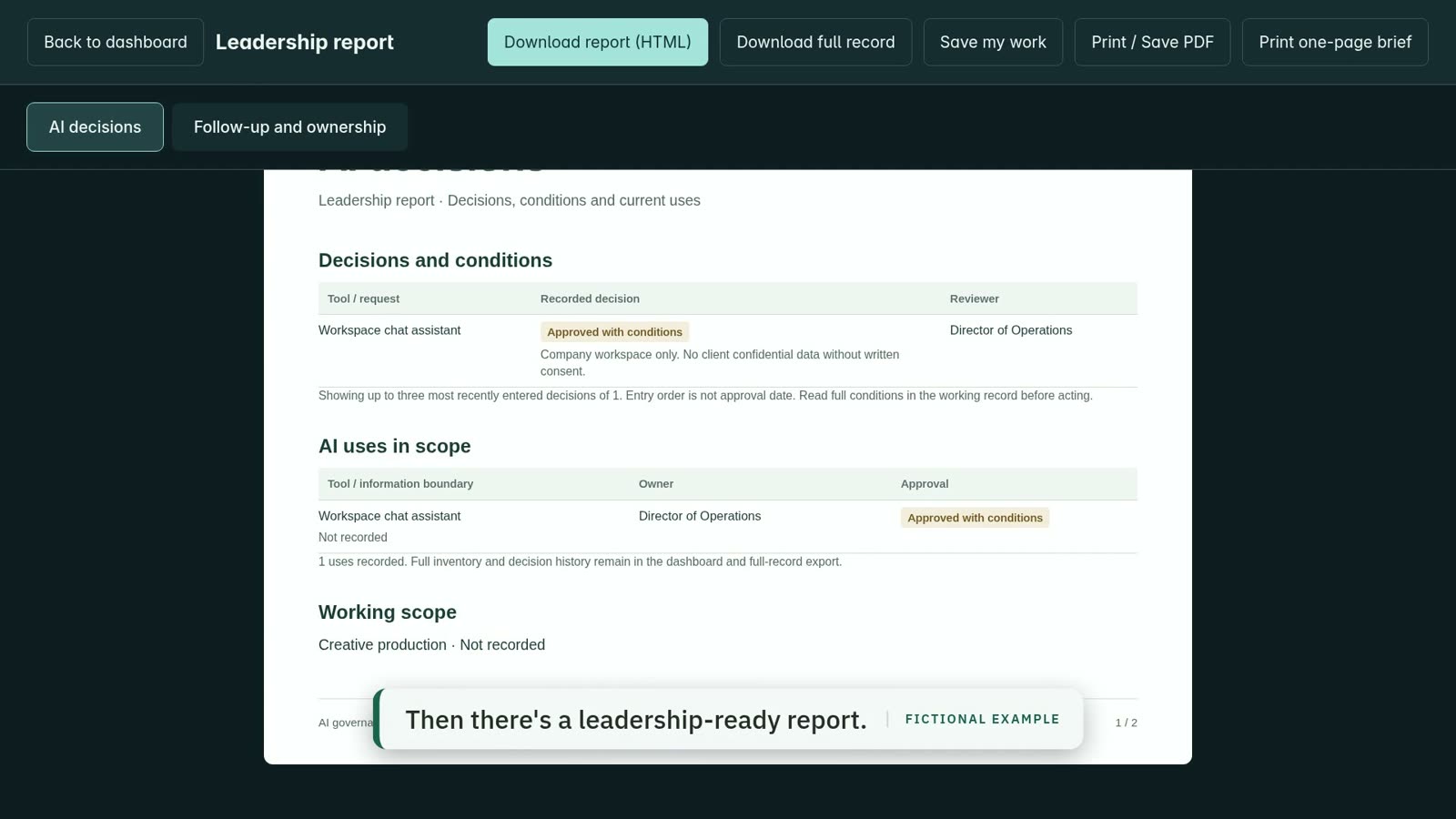
Choose Save my work to download a work file, check the file exists in Downloads and keep a dated copy in an approved location. Test Load a work file and confirm your company and first record. Loading replaces the current draft after confirmation, so save it first. Browser drafts are a convenience; HTML, Word and Excel are not restore files. Every working kit uses its own dashboard and Guided setup. Reports come from the entries you review. Supported inventory and action registers also accept Excel or CSV through Import records. Use the work file to restore the complete workspace; spreadsheets do not synchronize with it.
The included Excel (.xlsx) and CSV wizard supports AI inventory and actions in the Governance Toolkit, Policy and Shadow AI kits, and actions in the Questionnaire and SSPA kits. The ISO Evidence Collection kit has its separate CSV partner-request importer. Use Manual import, or choose Prepare a file with your AI and Copy import prompt to prepare your spreadsheet in work-approved AI. Paste the returned CSV or choose its file, confirm column matches and review duplicates before adding records. Compare AI-prepared data with your original spreadsheet; source details retain the prepared values, not the original workbook. Files are read locally in your browser. Original source values remain available for review; importing does not grant approval. Import history can undo a whole unchanged batch. Later edits or links to its records block undo to preserve subsequent work. Save a work file to retain records and import history. This is a reviewed import, not automatic synchronization.
The purchasing company can use and adapt the kit internally. Keep one coordinator responsible for the current work file and share reviewed reports or dated exports through approved company locations. Each person’s dashboard copy is separate: there are no team accounts, simultaneous shared editing, automatic sync or automatic merging. For shared access or a separately scoped team version, email service@extrasphere.com to discuss your requirements. This is an inquiry route, not a currently included multi-user feature.
Each kit is licensed to one company. Consultants buying for their own operations can use a standard kit. Delivering licensed copies to clients requires the Practitioner License or a separate license for each client company. See the published terms for company scope.
Updates are included for 12 months from purchase. Use your delivery email or Get a new download link for eligible updates. Keep a backup before loading your work into a newer version; check its compatibility notes.
Yes. Complete the dashboard yourself or use the included Draft with AI interview and advanced file workflow. Copy a section-specific prompt into your approved assistant and answer by voice or text. Bring its work file back to preview and apply selected fields. Your AI service and any required subscription are separate; you can always work without AI. Consulting and record review are scoped separately.
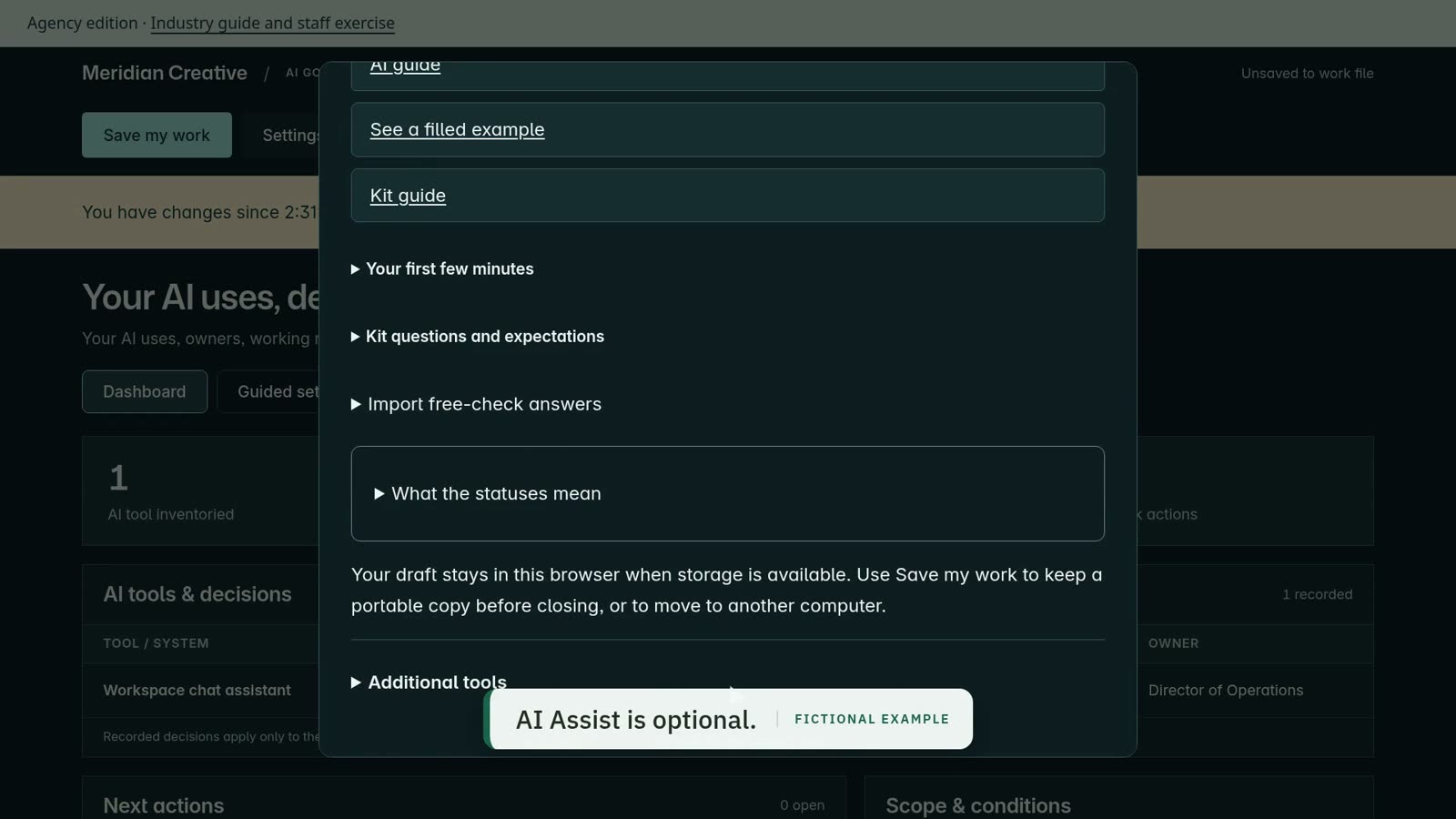
Yes, through the included request-and-review workflow. In Draft with AI, expand Advanced: work with your files, prepare a request and give it with the copied instructions to your approved agent. Select the evidence separately in that tool. Return the proposed response file to Draft with AI for review. This is file exchange, not a built-in connector or background sync. Local files may be processed by your AI provider; obtain the necessary company permission. The dashboard never automatically marks evidence verified or controls complete.
The prompts use plain text and a documented response format for tools such as ChatGPT, Microsoft 365 Copilot, Claude or another approved assistant. Use an agent with permitted file access for the advanced workflow. Available voice, file and export features depend on the provider, plan and organization settings. Start with text if voice is unavailable; switch back to text for the response file. An AI link opens the provider without sending your prompt or starting voice. Universal tool compatibility is not guaranteed.
Start with one real use or request in this kit. Record its purpose, owner, data involved, affected people and the next open action. Draft with AI can interview you about those facts. The kit helps organize tools already in use; it does not discover accounts automatically, monitor staff or assess vendor settings on its own.
Use Draft with AI → Paste AI draft or its response-file picker, not Load a work file. The draft must match the request from this dashboard and contain allowed fields. If entries changed while the assistant was working, prepare a fresh request to protect your newer work. Ask the assistant to correct any reported format error, or enter the reviewed values manually. Save my work retains your request and review history; keep that work file private.
No. Completed fields and review marks do not establish implementation, certification or independent assurance. Your team must adapt the records, verify the evidence, approve decisions and maintain the actual practices. These are independent preparation aids.
Purchase and access assistance is included. We reply to purchase inquiries and access problems within 2 business days. Implementation, legal advice and review of your completed records are separate services. See the published refund policy for its terms.
Run the compatibility check, click Copy results, and paste them into the IT request above or into an email to service@extrasphere.com. Include the kit name and version. Please do not send confidential evidence or unredacted work files.
For a missing email, check spam and your checkout address. Use your delivery email or Get a new download link for access; if it still fails, contact support with the order reference. Extract the entire ZIP before opening START-HERE.html. If report printing fails, download the HTML report and open it in your approved desktop browser.
Each walkthrough uses a fictional example company. Captions are available.
A policy starter, a Shadow AI check, a client questionnaire starter and industry field guides. Each one leads to a kit when you’re ready.
See the free toolsEmail the kit name, the file you’re opening and what went wrong. For order issues, include your purchase email and order reference.
We reply to purchase inquiries and access problems within 2 business days. Please don’t send card details, confidential evidence or unredacted work files.
Standard kits are licensed for one company. The separate Practitioner License includes commercial delivery and defined client allocations. Its terms govern branding, client copies and redistribution.